Most webmasters underestimate how important video thumbnails really are.
But the truth is simple:
The thumbnail is often the single most important factor deciding whether a visitor clicks your video or keeps scrolling.
A better preview thumbnail means:
- Higher CTR
- More video views
- Better engagement
- Longer watch time
- Higher monetization potential
That’s why working with thumbnails should not be treated as some cosmetic adjustment. It is a critical part of every successful video content platform.
In this short tutorial, we’ll show how incredibly easy it is to create high-converting preview thumbnails directly inside Tubes Booster CMS.
Tubes Booster allows you to:
- Browse video scenes using the timeline slider
- Instantly preview different moments from the video
- Select the best frame with one click
- Automatically set it as the main video thumbnail
No Photoshop.
No manual screenshot editing.
No complicated workflow.
Just move through the video timeline, find the perfect moment, and click:
Set current preview frame
That selected frame immediately becomes your main video preview thumbnail.
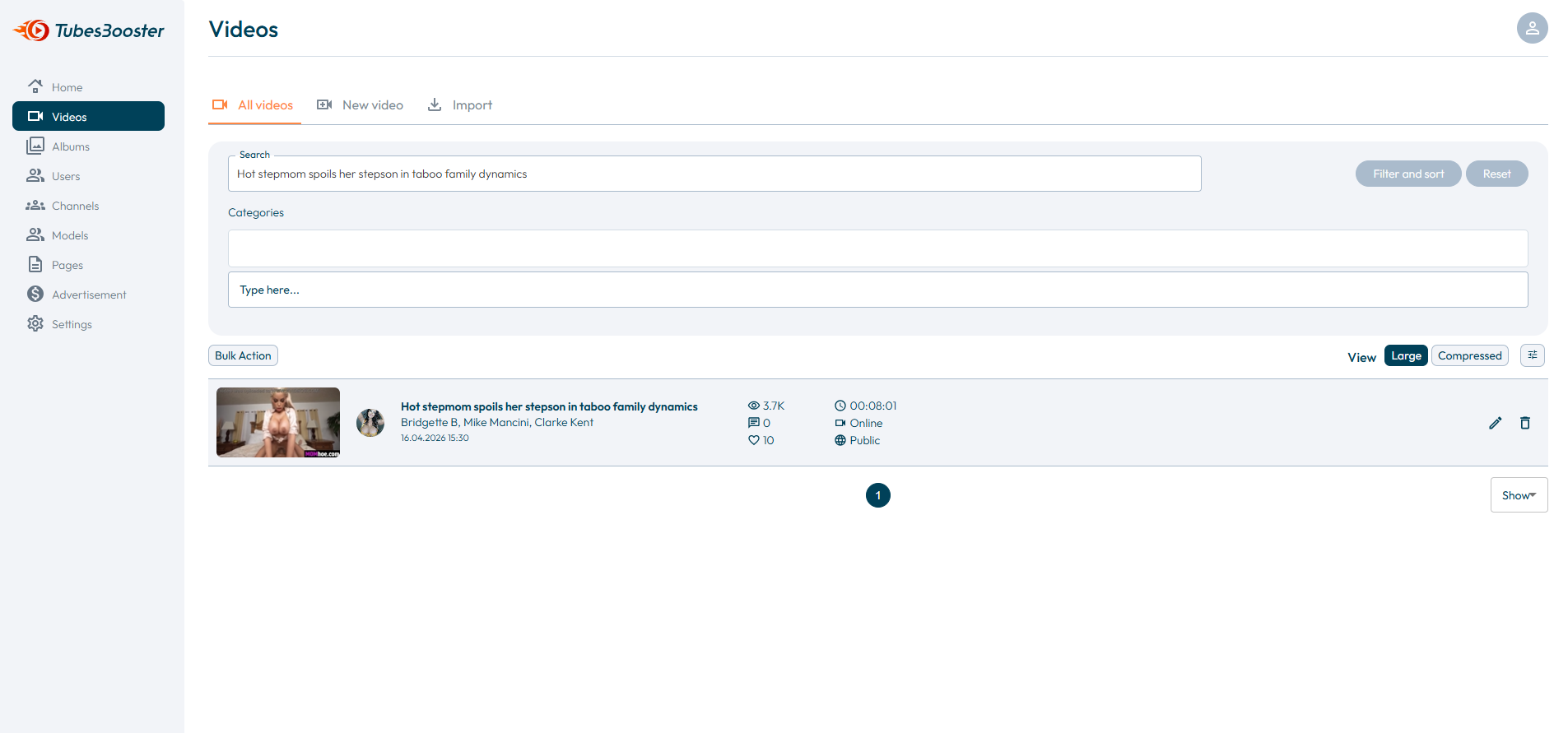
Step 1 — Open Video Editing
Click on Edit Video for the video you want to optimize. Inside the video details page, you’ll see the preview player along with automatically generated video screenshots.
These screenshots can be used as preview thumbnails for your video website.
When selecting a thumbnail, focus on:
- Visually attractive moments
- Sharp and high-quality frames
- Scenes that best represent the video
- Frames that instantly capture attention
 Step 2 — Browse Video Scenes
Use the video timeline slider to browse through different scenes and find the frame with the highest click potential.
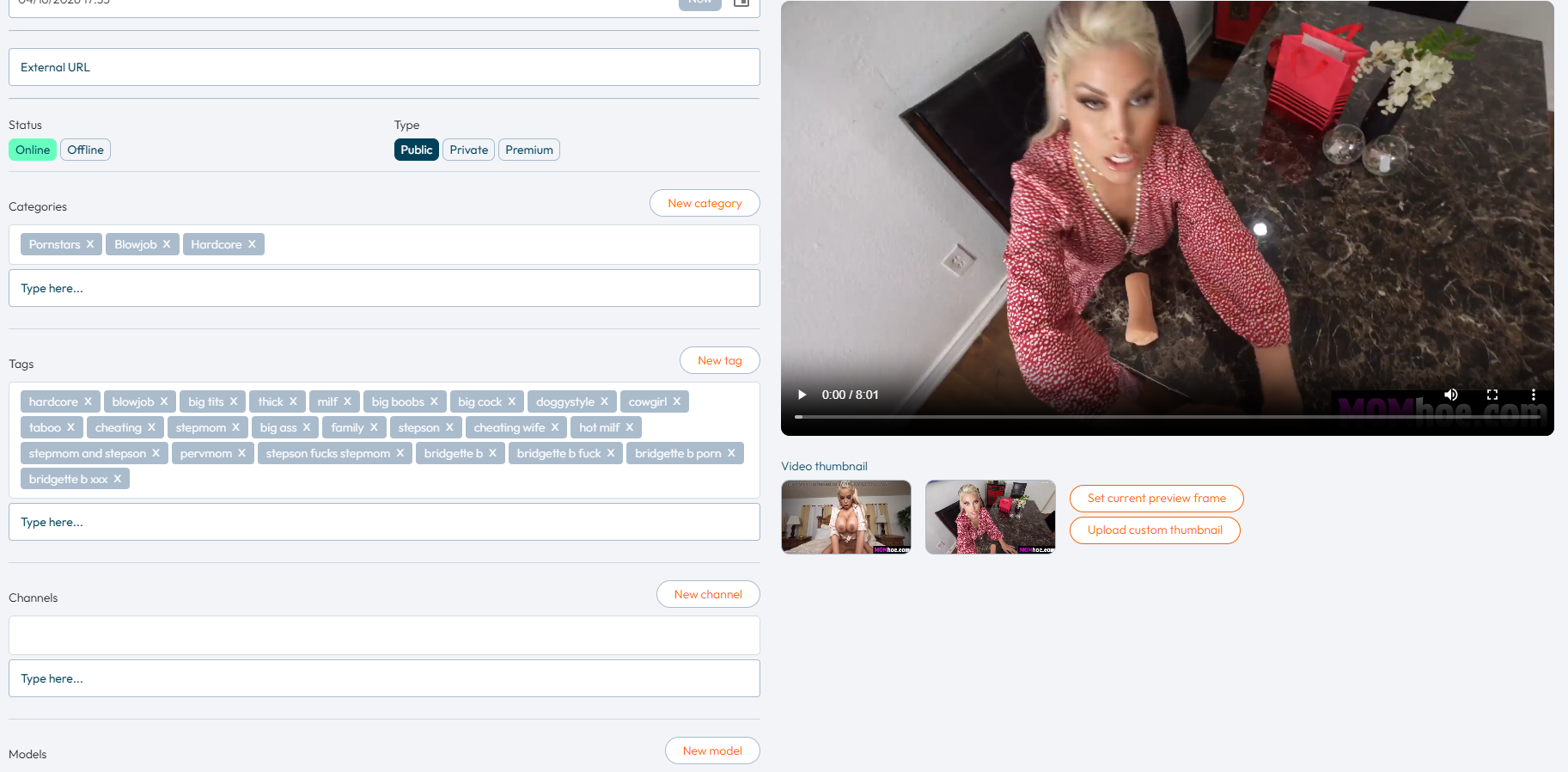
Look for a frame that:
- Represents the content clearly
- Visually stands out
- Looks sharp and clean
- Has strong CTR potential
Once you find the perfect moment, simply click:
Set current preview frame
The selected frame will instantly become the main preview thumbnail for the video.
 Step 3 — Save the Thumbnail
After selecting the frame, review the thumbnail and make sure it looks visually attractive and represents the content correctly.
Then simply click:
Save
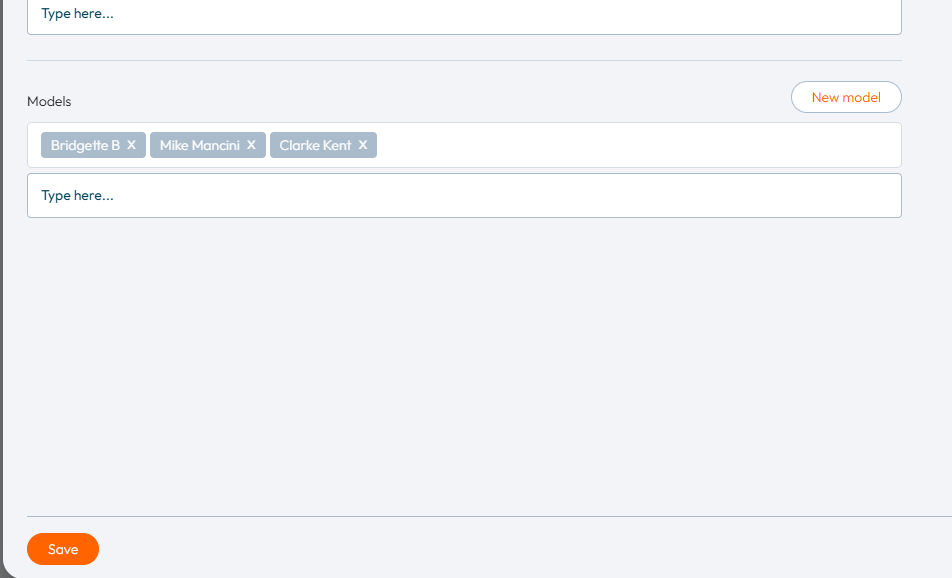
Your new preview thumbnail will now be stored and displayed across your video website.
Step 4 — Verify the Final Result
Open your video website and verify that the new thumbnail is correctly displayed to visitors.
 High-converting thumbnails are especially important for niche-focused video websites.
 The more accurately the thumbnail matches user expectations, the higher the probability of clicks and engagement.
Sometimes a single thumbnail can make the difference between an average-performing video and a highly profitable one.